
Scribe test - Markdown Export
How To Process An ECheck Payment For A Project
Made by with Scribe
Learn how to securely navigate the project portal and complete a payment using the eCheck method. This guide provides a step-by-step walkthrough to help you successfully settle your outstanding invoice.
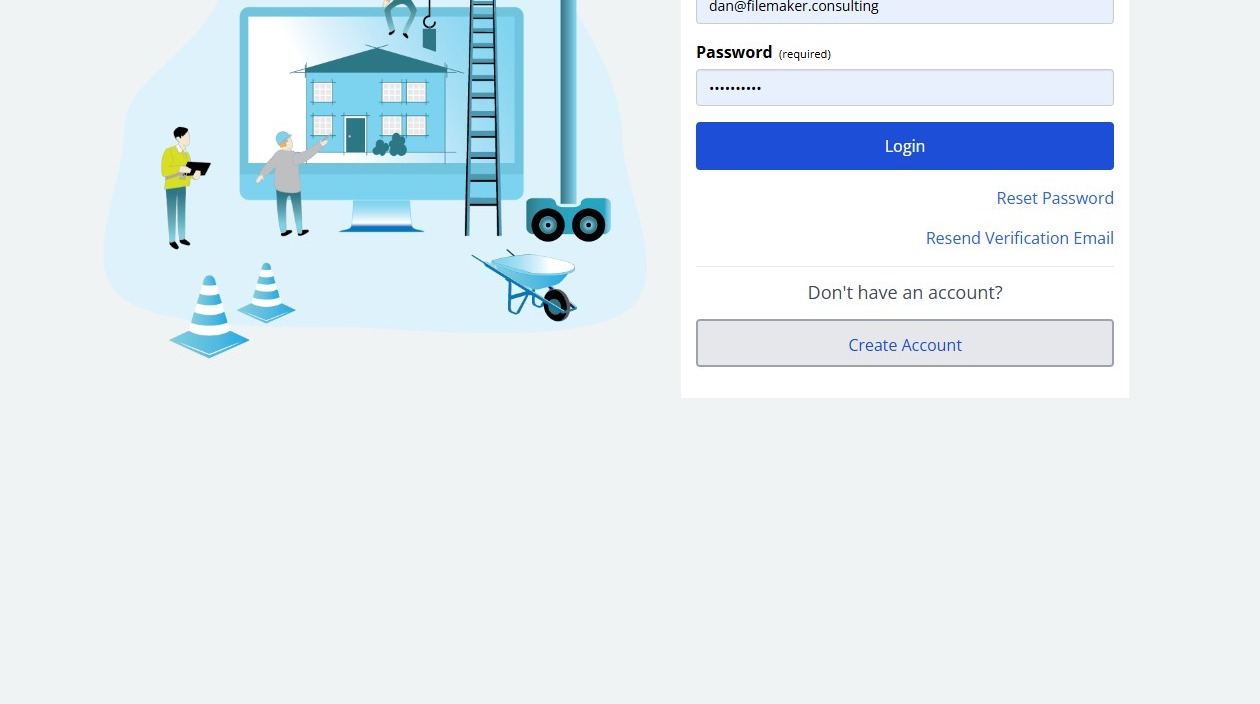
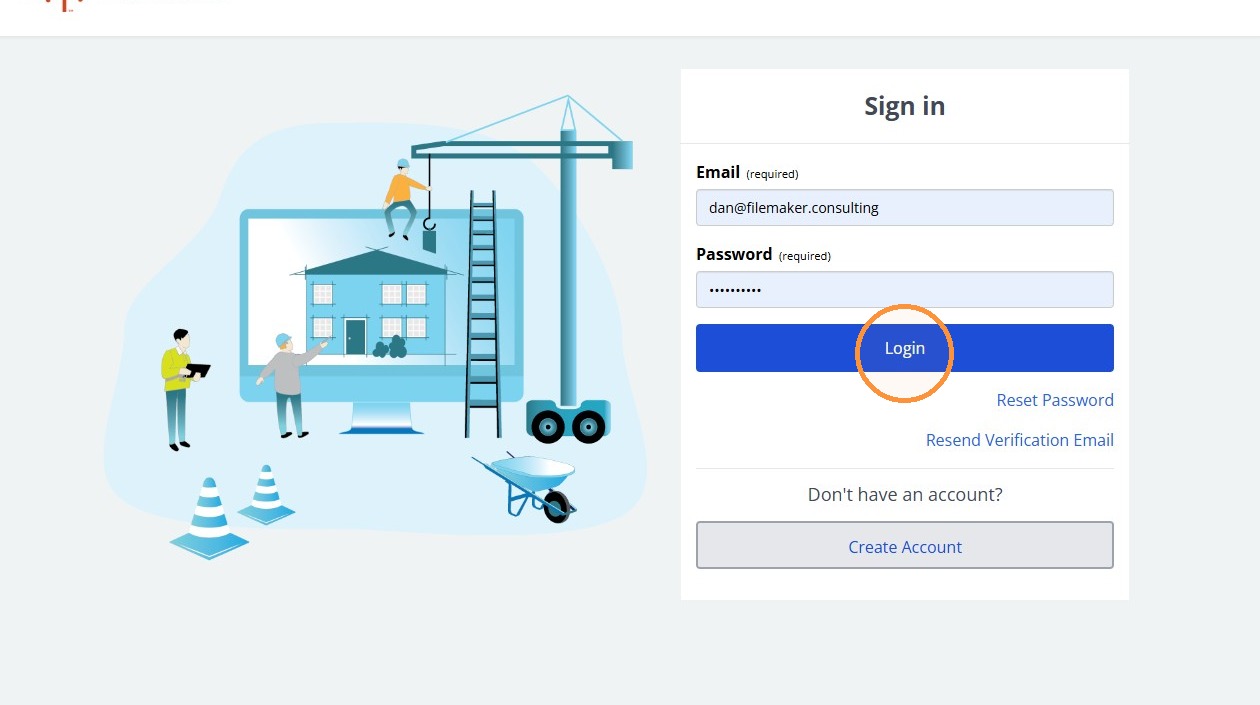
2. Click "Login"
Project Search
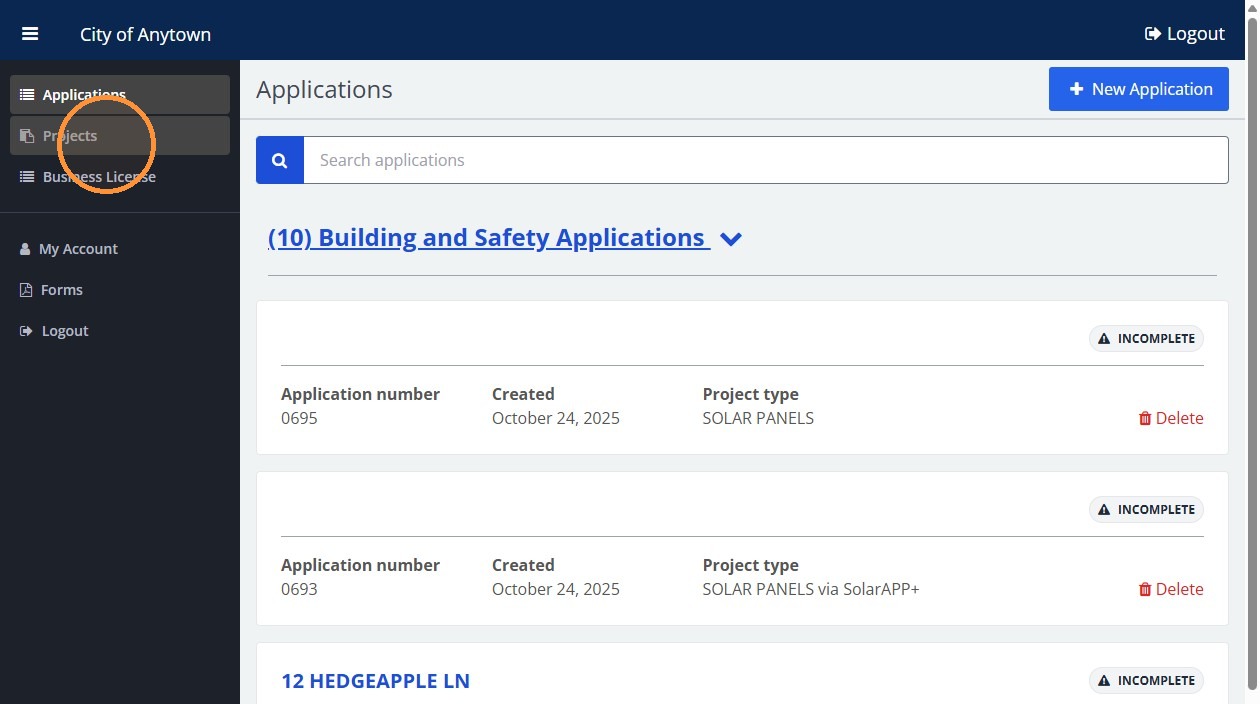
3. Click "Projects"
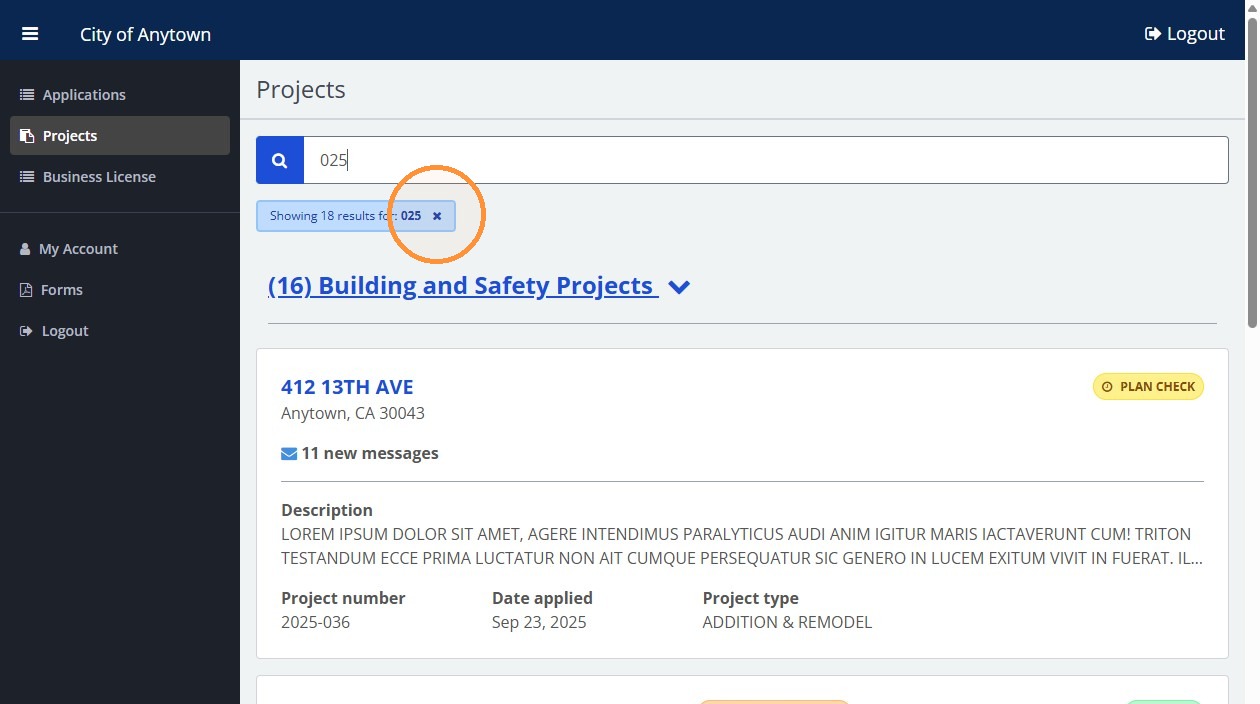
4. Type "025"
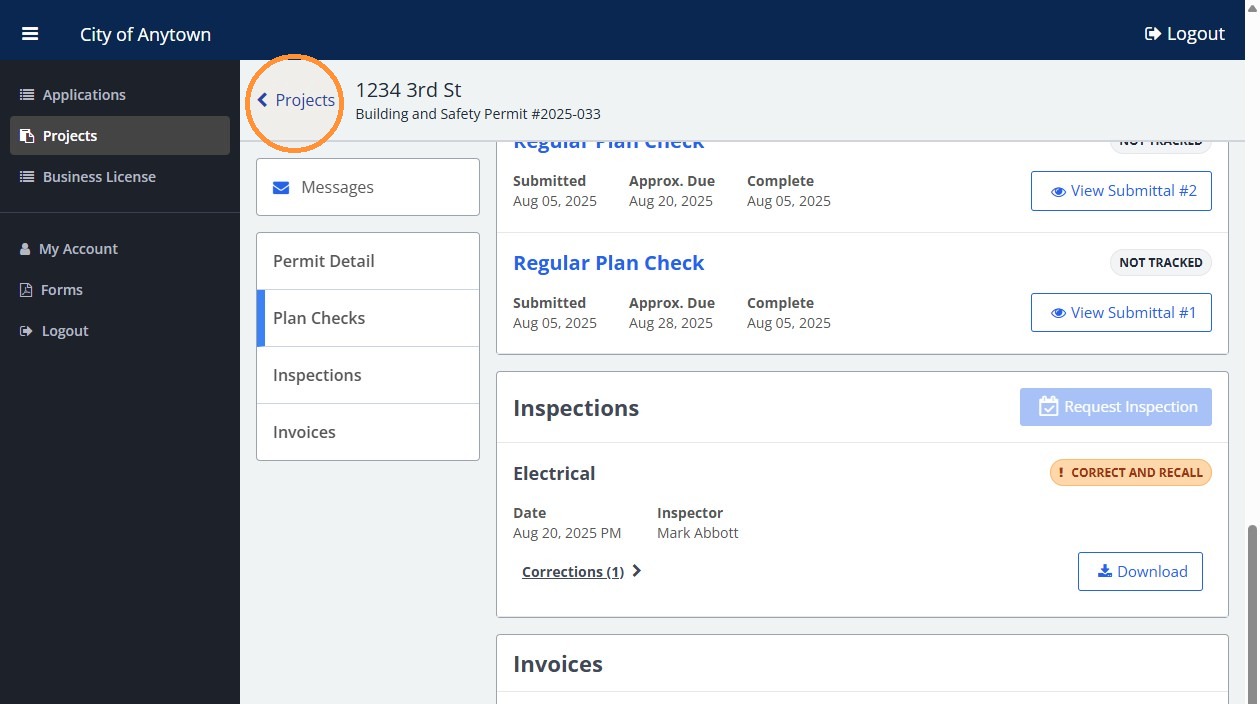
5. Click Projects to return to the project list
6. Click the X beside the search filter to clear it
Permit Selection
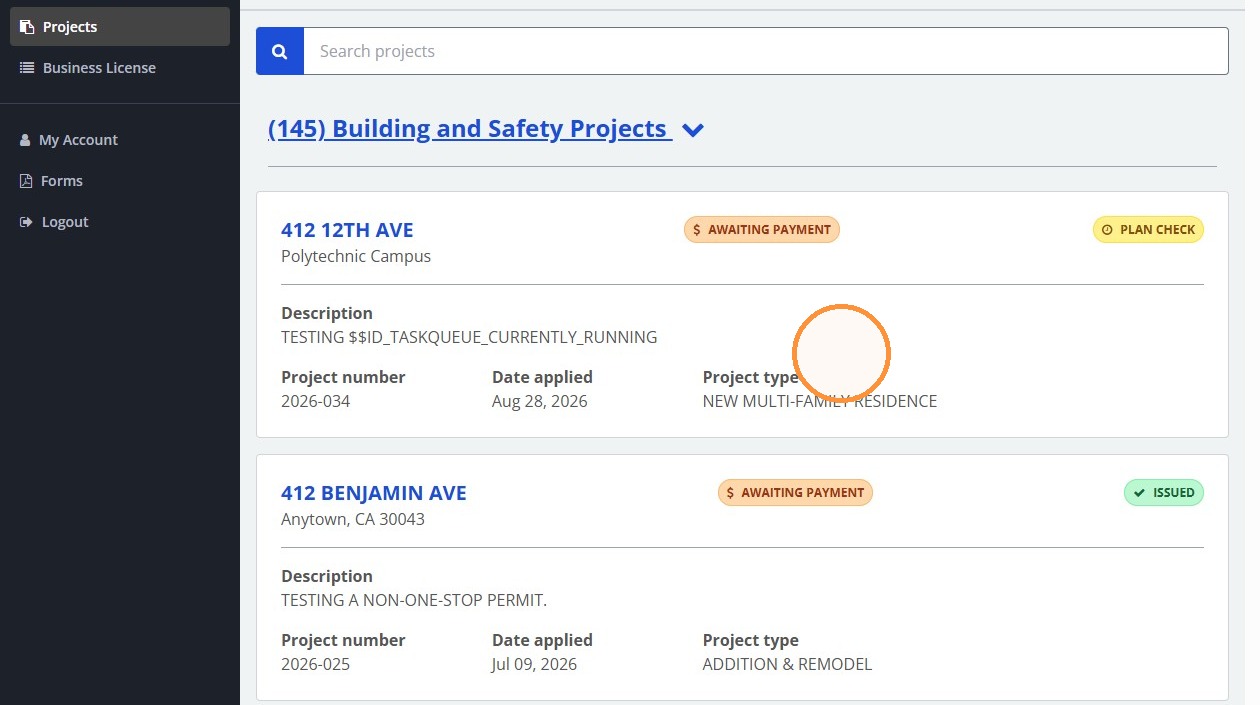
7. Click 412 12TH AVE
Invoice Payment
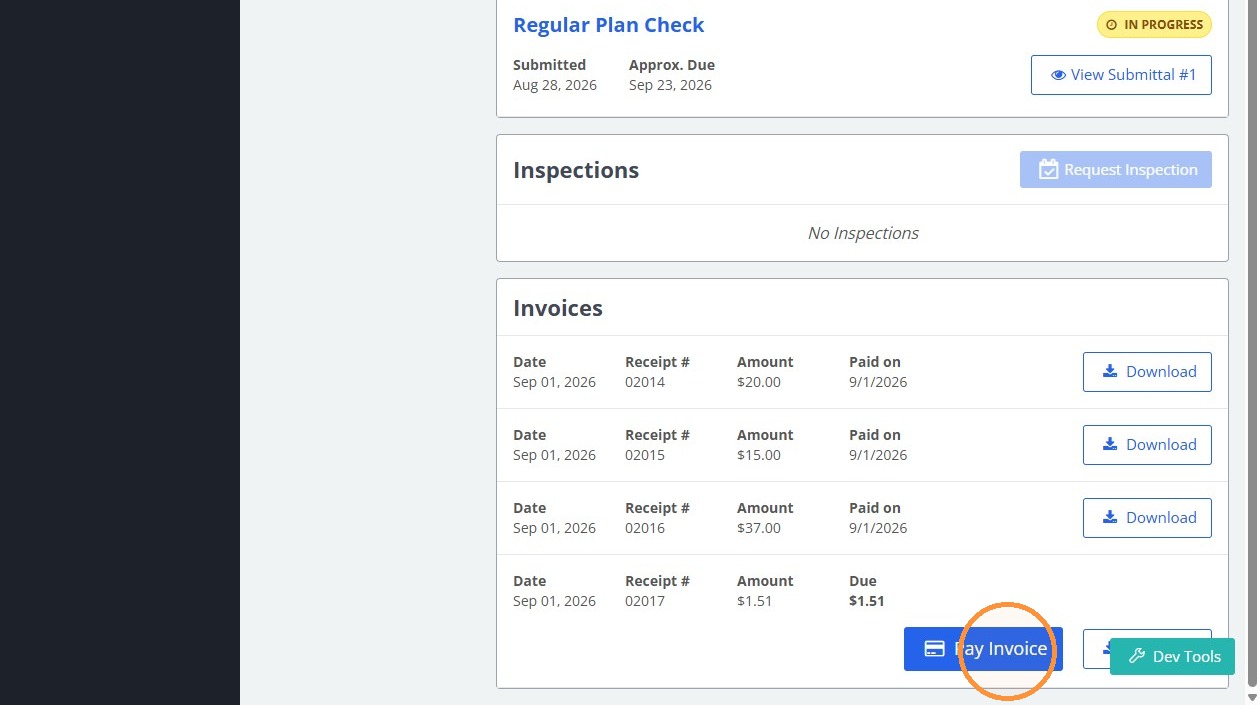
8. Click "Pay Invoice"
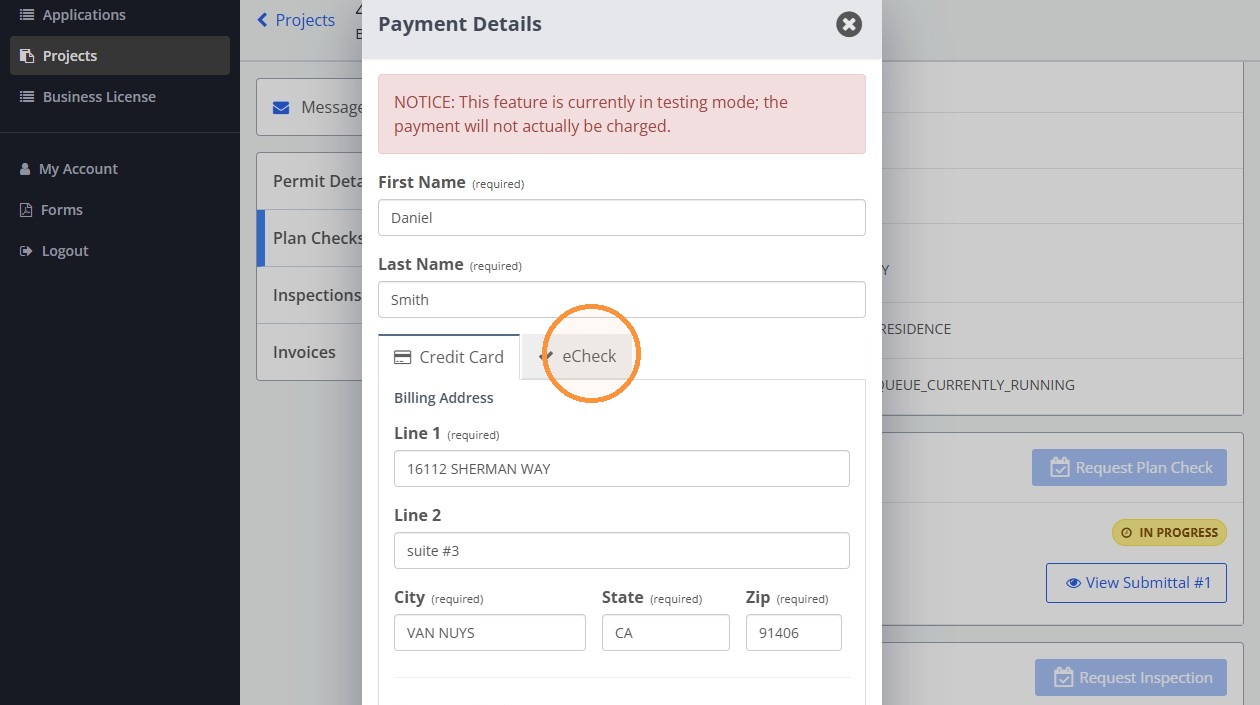
9. Click "eCheck"
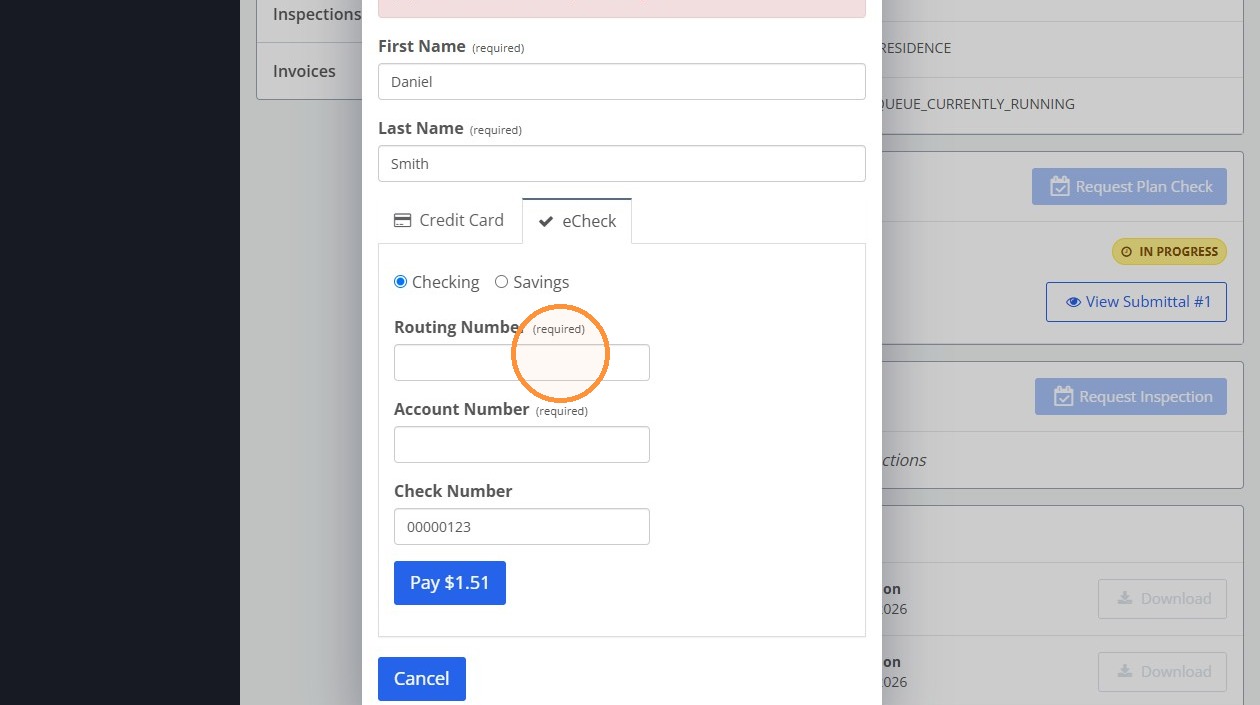
10. Click the "Routing Number" field.
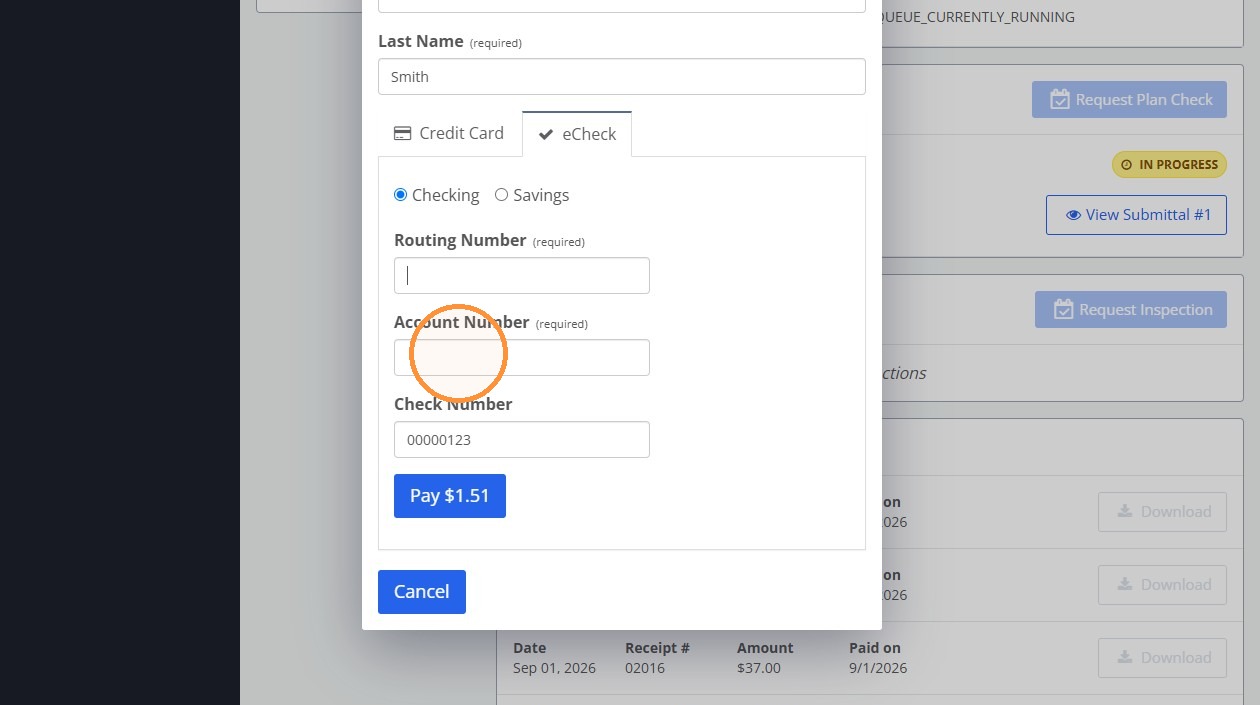
11. Click the "Account Number" field.
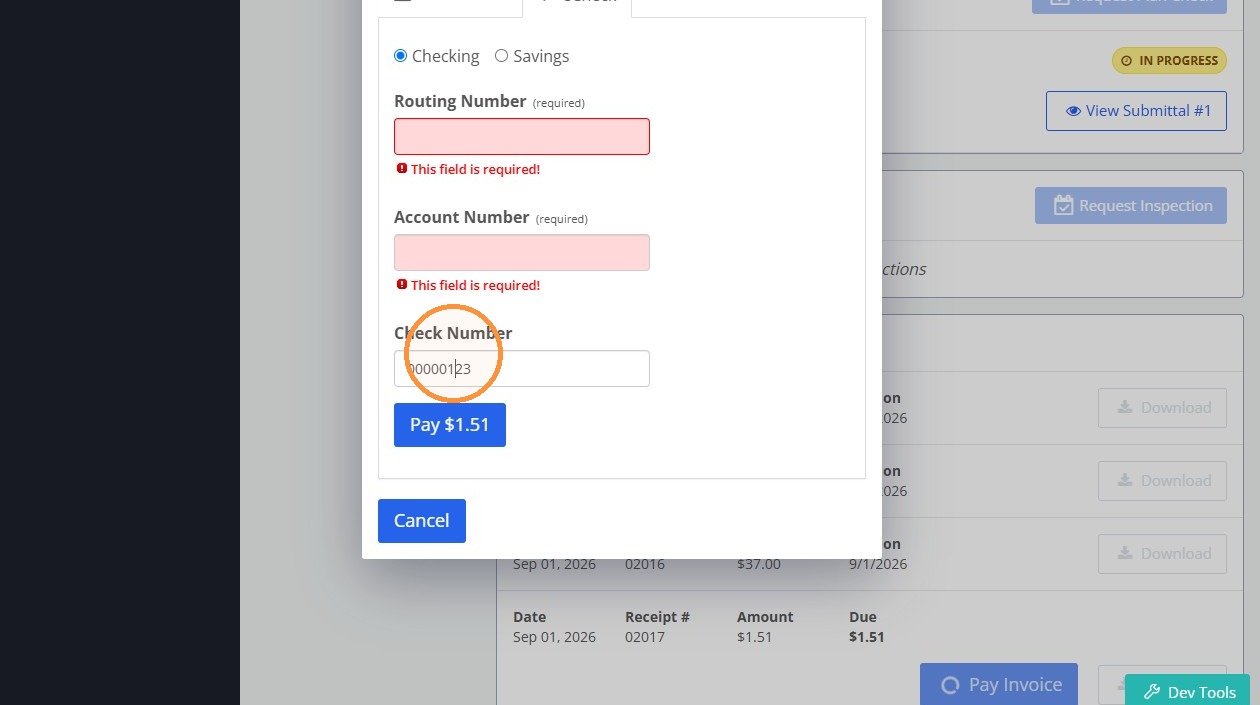
12. Click the "Check Number" field.
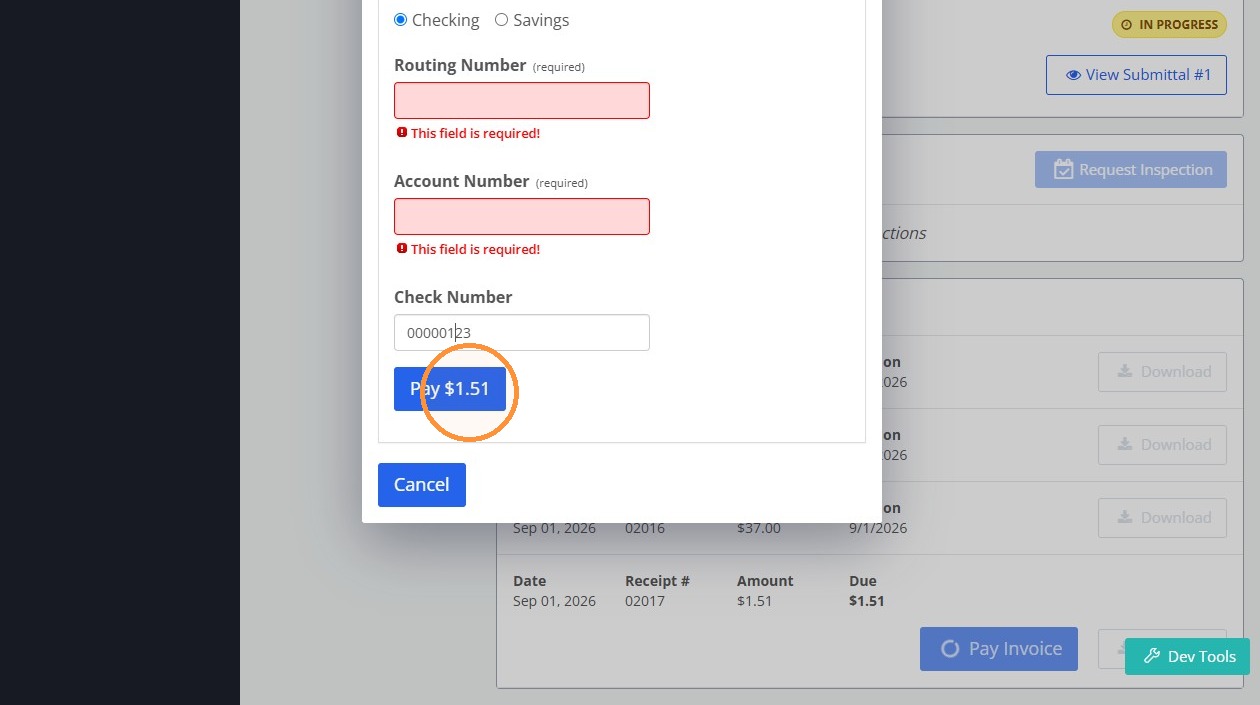
13. Click "Pay $1.51"
No comments to display
No comments to display